Windows PowerToys Gets Three Major Upgrades That Power Users Will Actually Care About
Microsoft has kicked off March with a meaningful update to its popular productivity suite, releasing PowerToys 0.98 to the general public. The update delivers substantive enhancements to the Command Palette, introduces a redesigned editing interface in Keyboard Manager, and refines several existing tools — signaling Microsoft's continued investment in its power-user toolset.
Microsoft
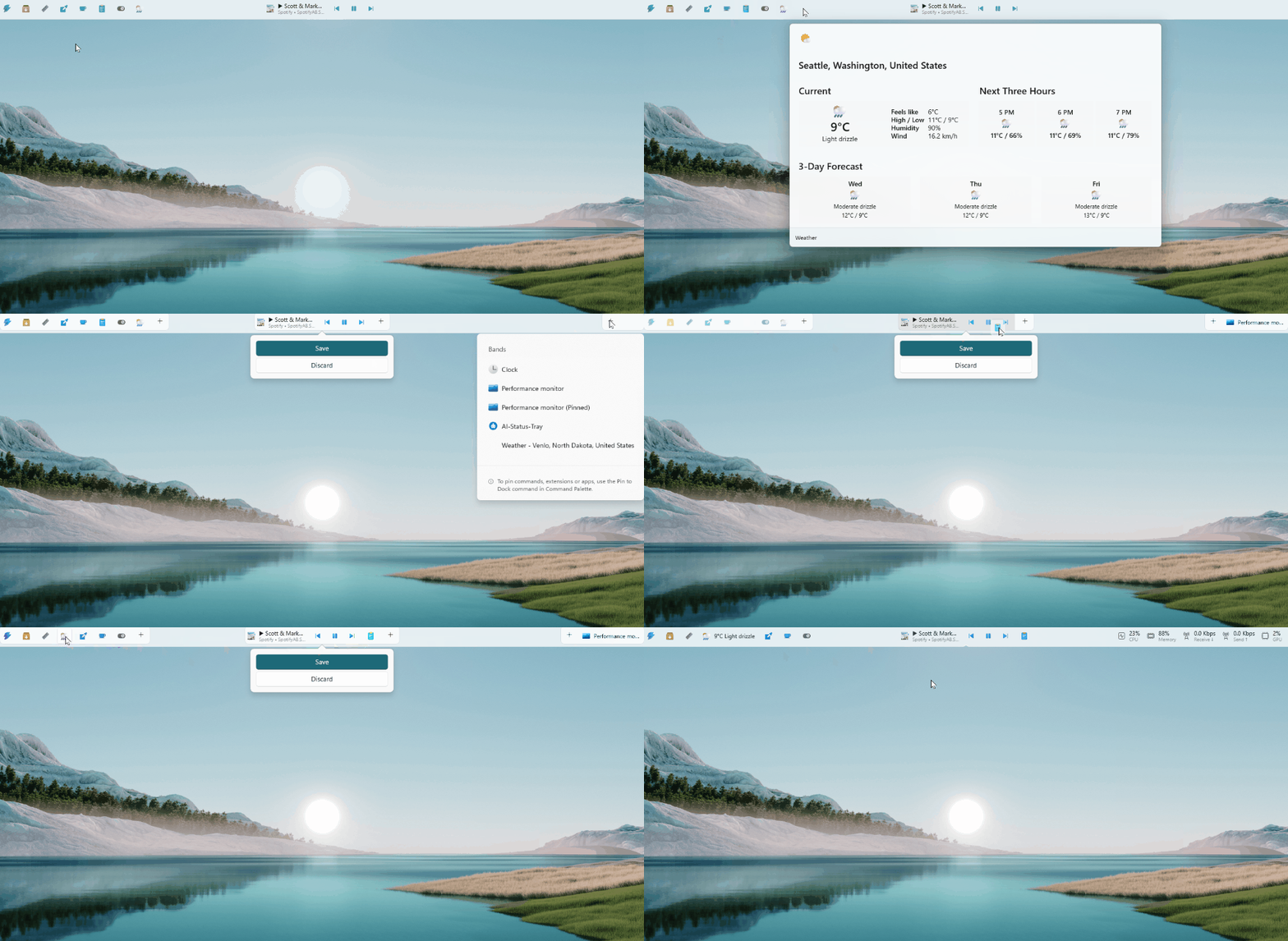
The headline feature of this release is the Command Palette Dock — a persistent, customizable launcher that lets users pin their most-used commands to any edge of the screen. Think of it as a contextual taskbar for power users: always accessible, never intrusive. Beyond the dock, Microsoft has also optimized the Command Palette's underlying performance and added support for transparent windows, giving the interface a more modern, visually cohesive feel that aligns with Windows 11's Fluent Design language.
Microsoft
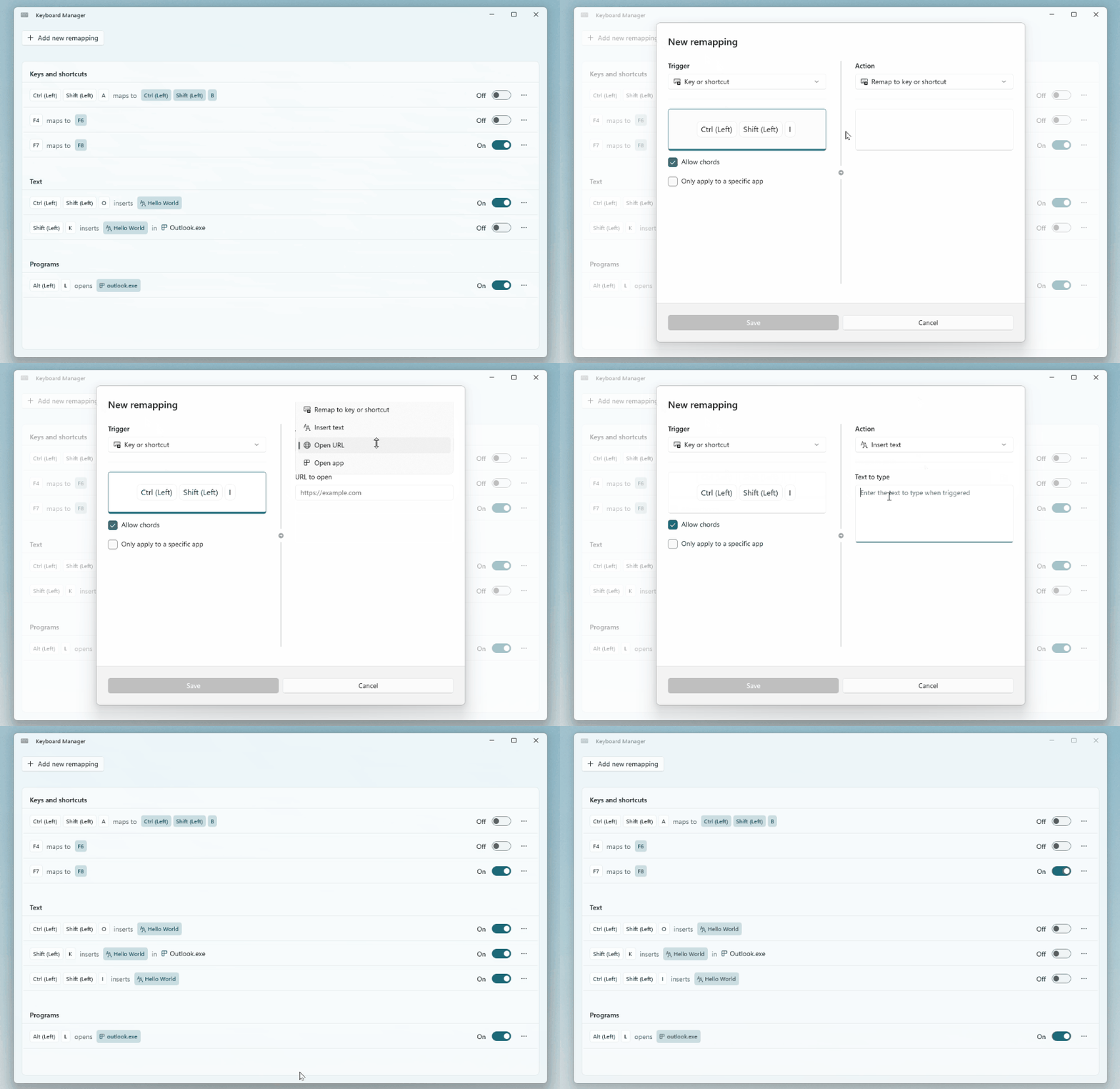
Keyboard Manager has received arguably its most significant overhaul to date. Microsoft has rebuilt the tool's editing mode from scratch — a deliberate architectural decision that prioritizes long-term maintainability and extensibility over incremental patching. In practice, this translates to a more intuitive workflow for remapping keys and defining custom shortcuts. Users can now toggle individual remappings on and off without dismantling entire configurations, and the integration with Command Palette deepens further: Keyboard Manager can now be launched and dismissed directly via a palette shortcut, keeping keyboard-centric workflows uninterrupted.
The CursorWrap mouse utility, which debuted in January, has also seen meaningful refinements in this release. Multi-monitor setups — a staple of developer and creative workstations — are now better supported, with an option to automatically disable the wrap behavior when only a single display is detected. For users who want more deliberate control, the wrap function can now be scoped to activate only while holding Ctrl or Shift, reducing accidental cursor teleportation during precision work.
Further reading: Useful Windows PowerToys features to start using